How to Use
It's as easy as 3 simple steps!
- Install the app
- First, check operation
- Download the guide and go to the movie theater!
Step Details
Install the App

Operation Check
Download Guides
Notes
- Please be sure to check operation before use.
- Since the app uses your device's microphone, please do not cover the microphone area. Also, please allow microphone access in the app settings.
- Data charges for downloading this application and update data are the responsibility of the user.
- You can also use Bluetooth earphones and Bluetooth headphones.
- Subtitle guides are mainly provided through "Subtitle Glasses (glasses-based subtitle guide)". You can bring your own MOVERIO/XREAL, or some theaters offer subtitle glasses rental services.
- If you are using a non-genuine earphone adapter, the earphones may not be recognized. Please be sure to use a genuine earphone adapter.
- There may be compatibility issues between your smartphone and earphones. If it doesn't work, please try different earphones.
- If operation check fails, Android users may be able to improve by changing microphone settings.
- For subtitle glasses rental locations and details, please visit Subtitle Glasses.
Android Microphone Settings
On Android, if the operation check fails for more than 60 seconds, a timeout alert will be displayed and you will be able to change the microphone settings.
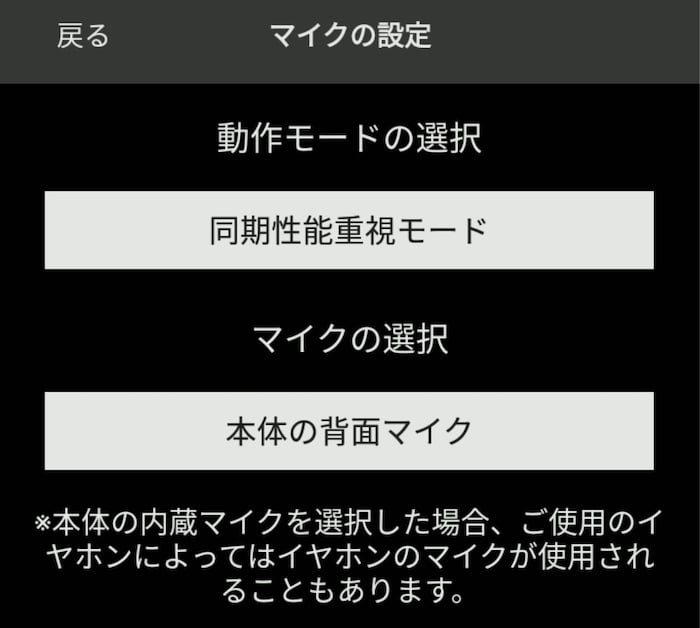
First, try changing the operation mode in "Operation Mode Selection" and check operation.
If the operation check still fails, try switching "Microphone Selection" and check operation.
There are 4 combinations of operation mode and microphone selection:
- Sync Performance Priority Mode + Rear Microphone
- Stability Priority Mode + Rear Microphone
- Sync Performance Priority Mode + Built-in Microphone
- Stability Priority Mode + Built-in Microphone
If operation check fails with any of the above combinations, please contact our support.